
wp_options Table – Clean Up Autoloaded Options
What is the wp_options directory?
The wp_options directory contains all kinds of data for your WordPress site, such as:
-Site – URL, Home – URL, Admin – Email, Default Category, Posts Per Page, Time Format, etc.
-Settings for plugins, themes, widgets
-Temporarily cached data
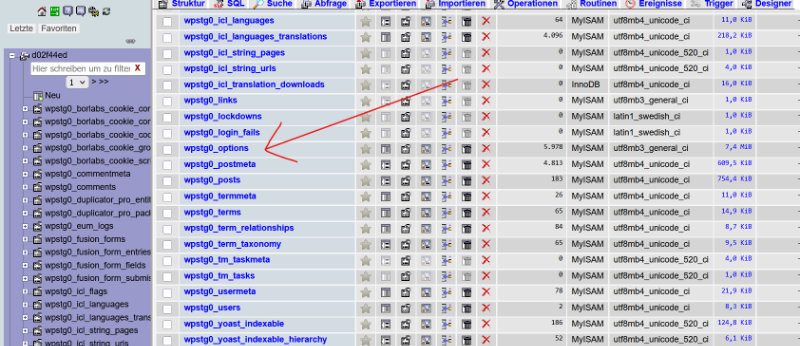
wp_options Directory
wp_options Directory
The directory contains the following fields, one of which places more emphasis on performance:
option_id
option_name
option_value
Autoload

The wp_options table is a critical performance factor in WordPress because all entries with autoload = ‘yes’ are loaded into memory on every page view. If old plugin leftovers and unnecessarily large data structures accumulate there, your site will be noticeably slower.
Basics: Understanding wp_options and autoload
Table wp_options contains global settings of WordPress, themes and plugins; the columns option_name, option_value and autoload are particularly relevant. The autoload value determines whether this option is loaded on each call (“yes”) or only when needed (“no”), which is why large autoload data is an immediate performance risk.
The first thing you can do is check the current autoloaded size on your WordPress site. In your phpMyAdmin, click on your database on the left and then click on the SQL tab. Then type the following command and press “Go”.
SELECT SUM(LENGTH(option_value)) as autoload_size FROM wp_options WHERE autoload='yes';You may need to optimize the query above if your WordPress site uses a different prefix than wp_.
You can also use a longer query like the one below. This will display the autoloaded data, the number of entries in the directory, and the first 10 entries by size.
SELECT option_name, length(option_value) AS option_value_length FROM wp_options WHERE autoload='yes' ORDER BY option_value_length DESC LIMIT 10;The autoload_size is given in bytes. A KB consists of 1024 bytes, an MB of 1024 KB. In our example, 939,774 bytes correspond to about 0.91 MB, which is a non-critical value for this page. If the value is less than 1 MB, there is usually no need for action. However, if the result is significantly higher, you should continue with the next steps from this tutorial.

A typical start is an overview of the size of the automatically loaded data. For example, in phpMyAdmin or another MySQL client, you can use the following query to see the total size and number and identify the largest chunks:
SELECT 'autoload_size_kb' AS label,
       ROUND(SUM(LENGTH(option_value))/1024) AS value
FROM wp_options
WHERE autoload = 'yes'
UNION ALL
SELECT 'autoload_count',
       COUNT(*)
FROM wp_options
WHERE autoload = 'yes'
UNION ALL
SELECT option_name,
       LENGTH(option_value) AS value
FROM wp_options
WHERE autoload = 'yes'
ORDER BY value DESC
LIMIT 10;
As a rough rule of thumb, 300-1000 KB of autoload data is considered healthy; several megabytes usually indicate a need for cleanup.
Typical causes of bloated autoloads
Large autoload blocks are mainly created by plugins that write a lot of configuration data or logs to wp_options and set autoload to “yes”. Often, their entries remain in the database even after uninstallation, because the plugin does not clean up properly during removal or WP cron jobs fail.
Serialized arrays with many entries (e.g. cache data, logs, tracking info) or old transients that have never been deleted are particularly problematic. These entries are no longer needed, but they still load every time the page is loaded, slowing down MySQL queries and PHP execution.
A good practice is to specifically analyze critical option_name values that appear in the “top 10” of the largest autoload entries. You can click on “Edit” in phpMyAdmin and view the content – often you can tell which plugin is responsible by the naming scheme (e.g. prefixes such as transient, plugin_xyz_, rankmath_, wpseo_, etc.).
Manual analysis and cleaning via SQL
If you’re comfortable with SQL, you can specifically search for large autoload options and flag suspicious entries. For example, a simple list of all autoloaded options sorted by size looks like this:
SELECT option_id,
       option_name,
       LENGTH(option_value) AS size_bytes
FROM wp_options
WHERE autoload = 'yes'
ORDER BY size_bytes DESC
LIMIT 100;
Before you change or delete anything, it is imperative that you create a full database backup and ideally test it in a staging environment. For entries that you’re sure only contain caches, expired transients, or old plugin data, there are two relatively safe steps:
- Set Autoload to “no” first and see if something breaks:
UPDATE wp_options
SET autoload = 'no'
WHERE option_name = 'DEIN_OPTION_NAME';
- If everything is stable after a few days, delete the entry:
DELETE FROM wp_options
WHERE option_name = 'DEIN_OPTION_NAME';
For transients that should expire anyway, you can also remove entire groups of wildcards, such as:
DELETE FROM wp_options
WHERE option_name LIKE '\_transient\_%'
   OR option_name LIKE '\_site\_transient\_%';
You should only use such mass commands if you know that your cache/transient system can handle them, as a lot of data has to be rebuilt afterwards.
WP-CLI Examples of Recurring Cleanup
WP-CLI is suitable for regular cleanup because you can use it to script lists, filters, and delete commands. An example of an overview of the largest autoload options:
bashwp option list \
  --autoload=on \
  --fields=option_name,autoload,size \
  --format=json \
  --orderby=size \
  --order=desc \
  --field=option_name \
  --page=1 --per-page=20
To delete an option, you can use WP-CLI like this:
bashwp option delete DEIN_OPTION_NAME
Or you can set autoload to “no” via WP-CLI without deleting directly:
bashwp db query "UPDATE wp_options SET autoload='no' WHERE option_name='DEIN_OPTION_NAME';"
Such commands can be packaged in a cron script or a small maintenance script that runs once a month, for example, after a backup has been created.
Use of plugins for automatic cleaning
If you don’t want to work directly in the database, you can use special optimization plugins. Tools such as Advanced Database Cleaner, WP-Optimize or corresponding functions in performance plugins analyze the wp_options table and provide interfaces for removing old transients, revisions and certain options.
These plugins can create automated routines, e.g. the regular cleaning of expired transients or the removal of orphaned plugin entries. However, they do not always recognize all problematic options; for complex or business-critical systems, a manual check of the largest autoload entries is recommended.
Visual support: diagrams and screenshots
To better communicate the situation, a simple visualization is worthwhile. A bar chart showing the top 10 autoload options by size makes it clear to stakeholders why certain plugins or options are problematic. Such a diagram can be generated from the SQL results (option_name vs. size_bytes) in a BI tool or self-built dashboard.
Screenshots from phpMyAdmin or Adminer, which show the wp_options view with filters WHERE autoload = 'yes' and sorted sizes, are also helpful. Marked lines (e.g. with colored comments in documentation or presentations) make it easier to assign them to specific plugins and measures later on.
Best practices and safety net
Regardless of the method, there are a few basic rules: create a full backup before any cleanup, ideally test in a staging environment, and schedule a maintenance window for production systems. In addition, after major deletion actions, performance monitoring, error logs and important functions (login, shop, contact forms) should be carried out in order to quickly identify any missing options.
In the long run, it is worthwhile to clean up at the plugin level: really uninstall unused plugins and themes, not just deactivate themes, and pay attention to how they handle wp_options when choosing new extensions. Especially with page builders, SEO tools, security plugins and complex integrations, it’s worth taking a look at the documentation to see if large amounts of data end up in the autoload area – and whether there are settings that reduce this.
With such a mix of analysis, targeted SQL/WP CLI actions, supporting plugins and clear processes, the wp_options table can be kept lean or brought back to a healthy state. The result is faster database queries, less memory consumption and overall noticeably better performance of your WordPress installation.
How do I identify plugin leftovers in wp_options automatically loaded data on WPML and WooCommerce integration?
Automatically loaded plugin leftovers in wp_options can be easily detected via a combination of SQL/WP-CLI, naming patterns and some WPML/WooCommerce know-how.
Basic principle: analyze autoload options
The first step is always to find the largest autoloaded options, because that’s where plugin leftovers and misconfigurations are most noticeable. In an SQL tool (or via WP-CLI) you can get the top entries like this, for example:
SELECT option_id,
       option_name,
       LENGTH(option_value) AS size_bytes
FROM   wp_options
WHERE  autoload = 'yes'
ORDER  BY size_bytes DESC
LIMIT 100;
Many remnants can be recognized by the prefix of the option_name:
- WPML stores options with patterns such as
icl_%,wpml_%, , translation caches, string indexes, and more. - WooCommerce and add-ons often
woocommerce_%use ,_transient_wc_%or plugin-specific prefixes such aswcs_,yith_%.
If large entries of plugins that you have long since uninstalled, or obviously cache/log data, appear here, these are typical candidates for “plugin leftovers”.
WPML and WooCommerce-specific patterns
For sites with WPML and WooCommerce, it’s worth taking a closer look at options related to translations and shop functions. WPML can generate many autoloaded options for language mapping and string translation; For example, WooCommerce stores tax, shipping, session, or reporting data.
Filters according to name patterns are helpful, such as:
SELECT option_id, option_name, LENGTH(option_value) AS size_bytes
FROM   wp_options
WHERE  autoload = 'yes'
AND   (option_name LIKE 'icl\_%'
    OR option_name LIKE 'wpml\_%'
    OR option_name LIKE 'woocommerce\_%'
    OR option_name LIKE '\_transient\_wc\_%')
ORDER BY size_bytes DESC;
If you find entries that belong to add-ons that are no longer in the system (e.g. old payment gateways, old translation tools), you can classify them as plugin leftovers. It is important to first check whether the associated plugin is really no longer active, then back it up, and only then set autoload to “no” or delete it.
Automated support through analysis tools
For more convenience, there are special optimization plugins that scan automatically loaded options and try to assign them to specific plugins or themes. Examples are:
- Autoload checker or “Option Optimizer”: show the number, size and name of all autoload options, mark orphaned options and provide clues to origin.
- Advanced Database Cleaner: scans the wp_options table, lists options by size, autoload status, and suspected plugin mapping, and allows filtered deletion.
However, this assignment is not infallible: options are often assigned to the wrong plugins or marked as “orphaned” even though they are still in use. That’s why the following applies: Use tools to find candidates, but always make decisions manually – especially in a setup with WPML and WooCommerce.
Procedure in practice
A pragmatic workflow looks like this:
- Determine total size and top autoload entries, group suspicious option_name by plugin prefixes.
- Check which plugins (especially WPML modules, WooCommerce add-ons) are actually still active.
- Mark obvious alt plugins and note their option names.
- First, set the autoload of these entries to “no”, test the page (frontend, checkout, translation).
- If there are no errors after a few days, delete the options in question.
In this way, plugin residues can be pulled out of wp_options in a targeted manner without jeopardizing WPML or WooCommerce functionality.
FAQ – wp_options table – clean up automatically loaded data
What is “autoloaded data” in the wp_options table?
In the wp_options table, WordPress stores global settings of core, themes and plugins. Each option has an autoload field that determines whether the value is automatically loaded on each page view (“yes”) or only when needed (“no”). All autoload options are pulled into memory with each request and thus directly influence performance and memory requirements.
Why can too many autoload entriesslow down my website?
The more and the larger the autoload entries there are, the more data the database has to read and pass to PHP every time the page is accessed. Especially large serialized arrays (e.g. logs, caches, old plugin data) can lead to requests becoming noticeably slower, even if the page seems “light” on the surface.
How do I find out how big my autoload data is?
The easiest way to do this is via an SQL query in a tool such as phpMyAdmin or Adminer. An example that shows the largest autoloaded options would be:
SELECT option_id, option_name, LENGTH(option_value) AS size_bytes FROM wp_options WHERE autoload = 'yes' ORDER BY size_bytes DESC LIMIT 50This will show you which options take up the most space and could be candidates for cleanup.
At what size should I be worried?
As a rough guide, a few hundred kilobytes of autoload data are still considered normal, depending on the setup. If the sum of the autoload options is in the range of several megabytes or individual entries are several hundred kilobytes in size, it is worth a more detailed analysis and cleanup.
What types of entries are often unnecessary or problematic?
Often these are old plugin leftovers, large caches, logs, debug data or expired transients that have never been deleted. They can often be recognized by prefixes in the option_name (e.g. transient, site_transient, plugin_spezifische abbreviations) and by the fact that the corresponding plugin is no longer active at all.
Can WPML, WooCommerce or page builders also inflate the wp_options?
Yes, extensive plugins store a lot of settings and cache data in wp_options. This is basically normal, but becomes a problem when old data is not cleaned up or large structures are incorrectly stored with autoload = ‘yes’. Then it’s worth checking specifically for the naming patterns of these plugins.
How do I safely clean up autoload data without destroying the page?
Important basic rules: Always create a full database backup first and ideally test it on a staging environment. Then proceed in three steps:
– Identify candidates via SQL (top sizes and obvious plugin leftovers).
– First, just set the autoload value from “yes” to “no” and test the page thoroughly.
– Only when nothing breaks, delete the options in question.
Can I just delete all the large autoload entries?
No, it’s risky. Some large entries are important (e.g. settings of essential plugins or caches that are immediately rebuilt). Deletion “on suspicion” can paralyze functions. It is better to check each large entry (view the content, recognize the prefix), then make a targeted decision.
Are there any plugins to help me clean up?
Yes, there are database optimization plugins that analyze autoload entries, sort them by size and detect some orphaned options. They make it easier to find candidates, but do not replace a professional examination: The decision as to what is really deleted or set to “no” should always be made consciously.
How can I automate regular cleanup?
Advanced users use scripts or command-line tools that regularly delete expired transients and known, non-critical options. Here, too, the following applies: first work out manually which entries can be safely removed, then automate.
How do I prevent the wp_options table from “cluttering” again?
A few simple rules help:
– Really uninstall plugins and themes you don’t need, not just disable themes.
– When it comes to new plugins, pay attention to a good reputation and clean handling of options.
– Regularly (e.g. semi-annually) take a look at the largest autoload entries.
– Establish a fixed maintenance routine for complex setups (shop, multilingualism).
When should I rather let a specialist do it?
As soon as your system is business-critical (e.g. WooCommerce store, complex integrations) or you are unsure which options are important, professional support makes sense. An incorrectly deleted option can affect ordering processes, translation logic or login functions – this is often more expensive than a properly planned maintenance order.